Aniimo has already received several fixes since launch, notably for black screens, repeated reconnections, display issues and certain interface stutters.
Quick answer: if Aniimo shows a black screen on PC, Pawprint Studio first recommends updating your graphics driver, testing both DX11 and DX12, then temporarily disabling DLSS and Frame Generation from the login screen. Several bugs have also been fixed since launch.
If your game works correctly but you are looking for general information about gameplay, platforms or Twining, see our complete Aniimo guide.
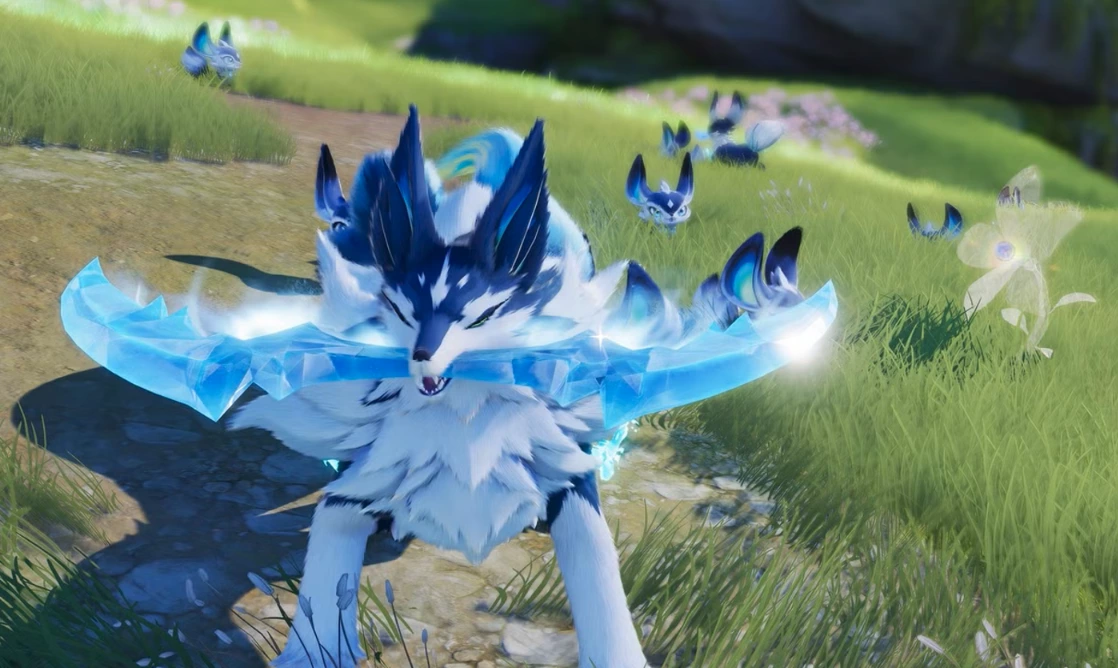
An Aniimo scene; if the game remains on a black screen, the official troubleshooting steps are detailed below. Credit: Pawprint Studio / Steam.
Aniimo black screen: official solutions to try
Pawprint Studio acknowledged at launch that some configurations could encounter a black screen.
The studio recommends three main checks:
update the graphics driver;
test switching between DirectX 11 and DirectX 12;
temporarily disable DLSS and Frame Generation from the login screen.
These recommendations should be tested one at a time so you can identify which change actually improves the situation.
An Aniimo gameplay visual with no added text; the following advice concerns stability, display and performance on PC.
Aniimo disconnects or loops on reconnection
One of the first post-launch fixes specifically addressed frequent disconnections and repeated reconnections.
Pawprint Studio acknowledged certain situations in which the client could remain stuck in a reconnection loop and published fixes in subsequent patches. To follow the game's recent evolution, also see our overview of Aniimo version 1.1, Lumiris and the September events.
If you are still experiencing this problem:
check that the game is fully updated;
restart the client;
check your Internet connection;
avoid immediately recreating your character or account;
check the latest patch notes.
Red screen and display issues
Some players also encountered an abnormal red display.
A temporary solution recommended by Pawprint was to switch the graphics setting to Performance mode.
The studio later published a fix targeting this issue as well as a bug that made some characters' eyes appear unusually red on certain graphics cards.
Stuttering and performance issues
The patch notes have also mentioned several performance issues related to:
certain interface elements;
floating damage numbers;
lock-on indicators;
memory;
certain environmental elements;
certain animations on PC.
Some of these issues have already been fixed or optimized since launch.
Steam Input: what should you do if the controller does not work?
Pawprint Studio has also documented a case where a controller might not work correctly on Steam.
The recommended procedure is:
open Aniimo in your Steam library;
go to Manage → Properties → Controller;
select Disable Steam Input;
restart the game.
This workaround should only be used if the problem is specifically related to controller detection.
The download is stuck at 0%
In its PC FAQ, Pawprint Studio recommends the following if the download is stuck:
restart the PC;
restart the launcher;
if necessary, run Aniimo as administrator;
click the game update again.
The studio also recommends installing the PC client on an SSD.
How much storage space do you need?
On PC, Pawprint Studio recommends reserving around 40 GB for the fully installed game.
The Steam page also lists 40 GB of available space.
On console, the studio requested around 30 to 35 GB of free space during pre-download.
On mobile, it recommends at least 18 GB of free space before downloading.
disable DLSS and Frame Generation if you encounter a black screen;
check available disk space;
close unnecessary background programs;
check the official patch notes;
contact support if the problem persists.
What you should avoid
To reduce the risk of making the wrong changes at launch, our guide Aniimo: tips and mistakes to avoid when starting out complements this section.
Avoid heavy-handed fixes found at random online, such as editing the Windows registry, deleting system files or permanently disabling security protections without a verified reason.
Official fixes evolve quickly, and several previously reported issues have already been corrected directly by Pawprint Studio.
Aniimo troubleshooting FAQ
Why does Aniimo show a black screen?
Several graphics-related causes have been acknowledged. Pawprint notably recommends updating the driver, testing DX11/DX12 and temporarily disabling DLSS and Frame Generation.
Should I use DX11 or DX12?
Pawprint recommends testing both if you encounter a black screen, as behavior may vary depending on your configuration.
How many GB does Aniimo require?
The Steam page lists 40 GB on PC. Pawprint asks for around 18 GB of free space before installing on mobile.
Why does Aniimo keep reconnecting in a loop?
Reconnection issues were acknowledged and fixed in several post-launch patches.
What should I do if my Steam controller does not work?
The studio recommends testing Steam Input disabled from the game's properties.
Key takeaways
The most documented Aniimo issues mainly involve black screens, some disconnections, display bugs and several performance problems.
Most of the earliest fixes have already been integrated into post-launch patches, but this page should remain a living resource and be updated with every major new version.